Reproducibility crash course
Learning objectives for today
At the end of today’s session, you
- will be comfortable with markdown/Rmarkdown or text reproducible scripts
- will be comfortable with the standard git pipeline
- will prioritize reproducibility and good computing practices throughout the semester (and beyond)
What does it mean to be reproducible? It means that you are able to redo the exact same analysis today, tomorrow or in 10 years and get the same results.
How does a reproducible script even look like?
Let’s start by looking at one of my reproducible scripts: the phylogeny of carrots.
What are the key characteristics of this file?
- It presents a fluid story (that needs to be understandable to you)
- It is written in markdown (text file), not word
- It combines text with shell commands and points at specific scripts (stored in
scriptsfolder) - It begins with a “To do” section: make things easy for yourself
Reproducible script for yourself
Do
- Use textfile, markdown or Rmarkdown so that you can track changes with git (more later)
- Write a story, not just a list of commands
- Explain the steps and rationale for the choices
- Work on the script at the same time as doing the work
- Copy output from commands as well as the commands if the output is needed to understand the story
Don’t
- Use Word
- Wait until the end to create this file (you will have forgotten important things by then)
- Simply copy a list of commands
- Worry about grammar, punctuation, complex sentences
Reproducible script for others
When you will publish your work, you want to make your reproducible script available to others. This is the time to worry about grammar and beautiful writing
- Improve the writing and the presentation by identifying the key sections of the your work and create a workflow around those key sections
- Remove trials and errors from the main workflow and present them as a separate file
- Start the script with dependencies and installation: what do people need to have installed and which versions to run your script?
- Be clear about the datafiles that are used in the script
See the sarscov2phylo github repository for an example.
In this class, we will focus on reproducible scripts for us only (not publication-ready scripts).
Ingredients of a successful reproducible practice
- Right folder structure
- Text editor: Text notes, Visual Studio Code, Emacs, RStudio
- Knowledge of markdown syntax (which is the same for Rmarkdown)
- Knowledge of version control via git/GitHub
1. Right folder format and filenames
Create a folder in your computer for this class (e.g. folder name myProject).
Your project folder should have the following subfolders:
- code
- data
- results
- figures
- manuscript
Your files should follow the good naming practices. Read Jenny Bryan’s notes. In a nutshell,
- No spaces
- No symbols
- Meaningful names
- Easy to sort
Points will be deducted for file names that do not follow the good naming practices! Most common mistake: spaces in file names.
3. Markdown syntax
Borrowing Cecile Ane’s class notes.
We can see this format if we look at the local version of the md lecture files. Note that GitHub renders the md files as they would look in html format.
For this class, we will create md files for the analyses and store them in the code folder.
3. Version control via git/GitHub
3.1 Why version control with git/github?
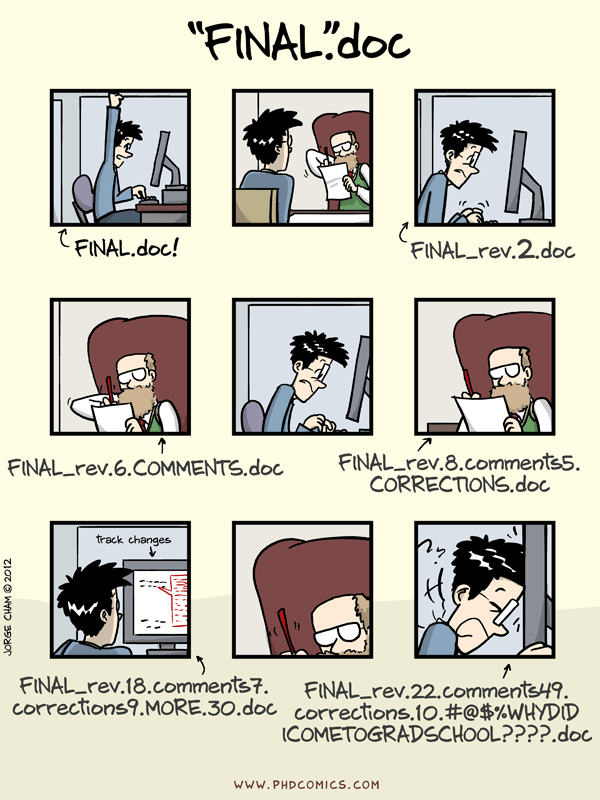
- Keep track of history of changes of files in your project
- Time travel: access to files from the past
- Peace of mind about breaking stuff:
Using a Git commit is like using anchors and other protection when climbing. If you’re crossing a dangerous rock face you want to make sure you’ve used protection to catch you if you fall. Commits play a similar role: if you make a mistake, you can’t fall past the previous commit. Coding without commits is like free-climbing: you can travel much faster in the short-term, but in the long-term the chances of catastrophic failure are high! Like rock climbing protection, you want to be judicious in your use of commits. Committing too frequently will slow your progress; use more commits when you’re in uncertain or dangerous territory. Commits are also helpful to others, because they show your journey, not just the destination – Hadley Wickham
3.2 Setting everything up
- Register for github account here; Think carefully about your username!
- Install git
- Configuration of git here
Stop and check: Do you know how to open the terminal? Do you get an actual path (folder location) when you type which git in the terminal?
If you are a windows user, you might need a bit more one-on-one help, so it is ok to chat more after class
3.3 Now, you want to connect your project to GitHub: git basics
You will have your local folder (in your computer) and a remote folder on GitHub that will serve for version control and backup.
Now, we need to create a GitHub folder and link the two (local and remote folders).
1. Create a github repository
- Click the green “New” button.
- Choose the repository name:
myProject - Choose to make the repository public
- Choose “no” to initialize this repository with a README file
2. Go to your local folder in the terminal
In the terminal:
cd myProject
pwd ## make sure you are in the right place
git init
git remote add origin https://github.com/YOU/myProject.git
Here you substitute YOU with your github username.
(Optional) Verify that your local folder is pointing at the right remote folder:
git remote -v
3. Make local changes:
cd myProject
touch README.md ## creates readme file
open README.md
In the text editor, write “This repository is for class PP 875 Phylogenetics Practicum (Spring 2026)”
Then in the terminal
git add .
git commit -m "updated readme"
git push
If you use RStudio or Visual Studio Code (VSCode), you can do these commands in the text editor directly via some buttons in the interface (not on the terminal).
YouTube
You can watch all these concepts again in the YouTube video.
Ask ChatGPT
If it is the first time git pushing from your computer, you will be asked to write your GitHub username and “password”, but it should not be your password, but a “Personal Access Token”. Check out these instructions from ChatGPT to create a token.
Homework
Make sure that:
- you have git installed
- you created your local folder (with the right structure) and linked it to GitHub (check with
git remote -v) - you have a text editor to use (e.g. I use Visual Studio Code)
- copy the
.gitignorefile from the class repository in your local folder (this file specifies the types of files that git will ignore; e.g. we do not want to push any data to GitHub)
Learn more about reproducible practices!
The shell
- If you have no idea what the shell is, read these notes
- If you are already familiar with the shell, but want to explore all of its potential, read Cecile Ane’s class notes (Topics 1,2,3,5)
Naming files
- If you did not even know there was a right way to name files, read Jenny Bryan’s notes
Markdown
- If you have never used markdown/Rmarkdown, read Cecile Ane’s class notes
Git/GitHub
- If you have never used git/github, read these software carpentry notes
- If you want to learn more about git and github for R users, read Jenny Bryan’s book
- If you have tried to use git, but made a mistake and don’t know how to fix it, read these notes
Reproducibility
- If you are already a bit reproducible, but want to take your reproducibility skills to the next level, read Karl Broman’s class notes and watch his YouTube video
- Read Simona Picardi’s class notes for a complete overview of computational tools for reproducible science